Meetup
MEETUP GUIDE AND TIMELINE
Please see a guide to the Meetup Process and Timeline below. This will provide you with the steps to complete each stage of the Meetup Process as well as the deadline dates for each stage. For any Meetup questions, please reach out to your logistics lead or [email protected].
MEETUP STEP BY STEP GUIDE
MEETUP PROCESS GUIDE
OVERVIEW OF MEETUP TIMELINE
MEETUP AND HOSTED MEETING FAQs
- Do I need to complete a profile if I’m not taking Meetings?
-
No you do not! If you or any of your team will not be taking meetings at all, you do not need to complete a profile. If you would like to stop receiving any reminder emails from the platform, please let us know and we can unenroll you from Meetup entirely.
-
- How to transfer a ticket during this Profile Completion Stage
- Please email [email protected] noting which attendee(s) can no longer attend so we can release the ticket(s). Once this is done, you will be able to log into your registration portal and reallocate the ticket.
- I need access to the Meetup Platform but I’m not registering a ticket
-
The best way to get access to the platform if you yourself are not registered to a ticket is to be assigned as someone/everyone’s assistant. See below for how.
-
-
I’m an admin but I can’t log into the Meetup Platform
- An email is going out tomorrow with your login details. If you still do not receive this email, please alert me and I will troubleshoot with you!
- In order to log into an organization profile, and you are NOT registered for the event (not a “Team Member”), you must login using the username and then an OTP.
-
If you are a registered attendee (a “Team Member”), then you can login using your email address and an OTP. In order to update your organization’s profile, you can do so by clicking on the Profile button on the top left hand corner, then clicking on the arrow next to “Preview Profile” and then clicking on your organization’s name.
- If you are an Admin for an organization that has Hosted meetings, you must also assign Meetings Reps during this stage, which can be done via the Organization’s profile page!
-
As an Admin, I need to be able to see and complete actions on behalf of others. How do I do this?
- Completing actions on behalf of team members is not a function that can be done directly from the admin login. To do this, the admin will need to log in as each team member, separately, and assume their identity in the system. Once logged in, they can complete the stages for each team member.
-
The most efficient way to assist team members with creating a profile, making requests, opt-ins, and viewing meetings is by being assigned as their assistant.
- There are a few ways to become someone’s Assistant.
-
The team member can add the helper’s details as an Assistant when creating their Profile in the Meetup platform.
- Log in here: https://app.spring.shoptalk.com/newfront
- Username: the team member must enter the email address of the person they want as an assistant
- The assistant will then receive a one-time passcode (OTP) to your email address too as the Assistant. Simply enter the OTP to log in.
-
You can enter the team member’s email address, request an OTP and have that team member send you the OTP they received to their email. You can then log in as them and enter the assistant information yourself.
- Via the Registration Platform: If you are the registration admin and you completed the registration for the team member, you can use the log in information that you got sent from Visit (the registration platform) and go back into their registration to add in an assistant.
-
I have Hosted Meetings and I need to assign Meetings Reps.
- This can only be done by the admin or individuals noted as admins via the company profile.
-
To toggle from the company profile and the individual’s profile, the admin must be logged in. Once logged in, they should click on their icon on the top right-hand side of the page, where they will see their company profile and personal profiles to click.
- Once on the company page, the admin must click the “Assign Meeting Reps” tab on the top right-hand side of the page.
- Here, the admin will click “Click to assign meeting reps”, where they will then select the team members they would like to assign.
-
PLEASE NOTE – ALL INDIVIDUALS MUST BE REGISTERED AND ATTACHED TO THE PARTNERING COMPANY IN VISIT IN ORDER TO SHOW UP HERE.
-
-
How many Meeting Reps can I have?
- There is no limit on the number of Meeting Reps you can assign. But note that if you have more than 16 Hosted Meetings, you must have more than 1 Meeting Rep.
- How do I complete the Selection process?
- Please follow the guide linked at the top of this page, labelled "Step by Step Guide".
- During the Selection process, how do I find all Hosted R&CBs?
- To find all Hosted R&CBs, go to the Filters portion of the Selection page (left-hand side panel), to the "Your Role's Influence" section. There, select "Buyer" from the list of options. This will bring up all event retail and consumer brands.
- How do I tell if someone is a Hosted R&CB?
- When in the Selection stage, anyone that is a Hosted R&CB will have a green H under their name. See screenshot below as a reference.
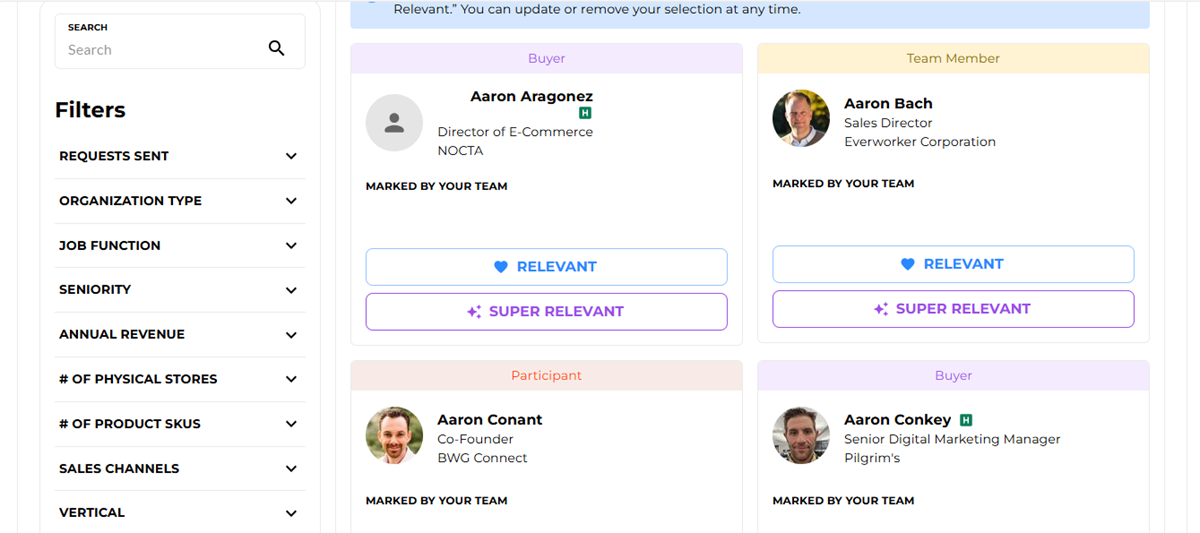
- What do each of the attendee types mean? Who fall within each attendee type on the Meetup Platform?
- Buyer
- This refers to our Hosted Retailers & Consumers Brands segment. If you have not purchased Hosted meetings, you will only have visibility to 50% of our Hosted Retailers & Consumer Brands who have said they are interested in taking non-Hosted meetings. While you will have the opportunity to request to meet with Buyers, please note that all meetings that are scheduled with Buyers will be prioritized with the sponsors who have purchased Hosted meetings and are assigned as Meetings Reps.
- This DOES NOT include Paid Retailers & Consumer Brands
- Team Member
- Non-hosted sponsoring company attendees.
- Sponsoring company team members not invovled in the meetings process (non-meeting reps)
- Sponsor company team members that did not purchase hosted meetings.
- Participant
- General attendees
- Investors
- Etc.
- Meeting Sponsor
- A hosted sponsor attendee who has been delegated to take hosted meetings (formerly known as Meeting Reps)
- Buyer
- My company/attendees aren’t showing in the platform!
- If you are registered, you, your team, and your company won’t be visible to you in the Platform because you can’t request to meet with yourself or other team members. But if you are registered, and have not explicitly asked to be unenrolled from Meetup, you are visible to all other attendees in Meetup!
- If you are registered, you, your team, and your company won’t be visible to you in the Platform because you can’t request to meet with yourself or other team members. But if you are registered, and have not explicitly asked to be unenrolled from Meetup, you are visible to all other attendees in Meetup!